2. When you have downloaded it, unzip it. You can use WinZip, or maybe you have another unzipping utility that you like better. It shouldn't matter.
3. There should now be a file called "korean.ttf." Put this into your C:\WINDOWS\Fonts directory (or wherever you put your fonts to install them).
4. Click Start -> All Programs -> Accessories -> Accessibility -> On-Screen Keyboard.
5. Click Settings -> Font ...
6. See that menu with all the different fonts in it? Select "Korean." I also recommend that you change the font style to "Regular," the size to "12," and the script to "Western." Hit OK when you're done.
7. Turn on your Korean IME. I hope you know how to do this, because it would take too long for me to explain it to you.
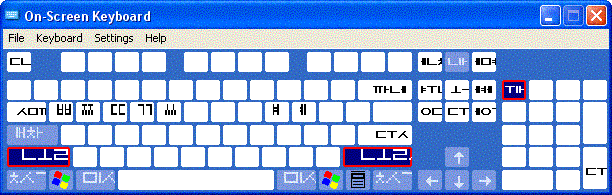
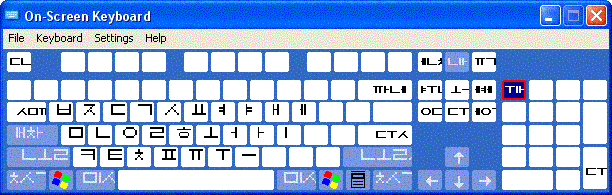
8. Now you can type hangul by clicking on the keys on the on-screen keyboard. If you need double hangul, or if you need yae or ye, hold Shift on your real keyboard. They should then appear on your on-screen keyboard. You'll notice a lot of garbage hangul on your on-screen keyboard. Just ignore that. I don't know how to get rid of that at this time. That's what happens when On-Screen Keyboard tries to represent words like "enter" with my font.